😊 Copilot Studio Agent APIs – Part 2: Building a Sentiment-to-Emoji PCF Component Using AI Prompt Actions
 Sergio García Fonseca 15/07/2025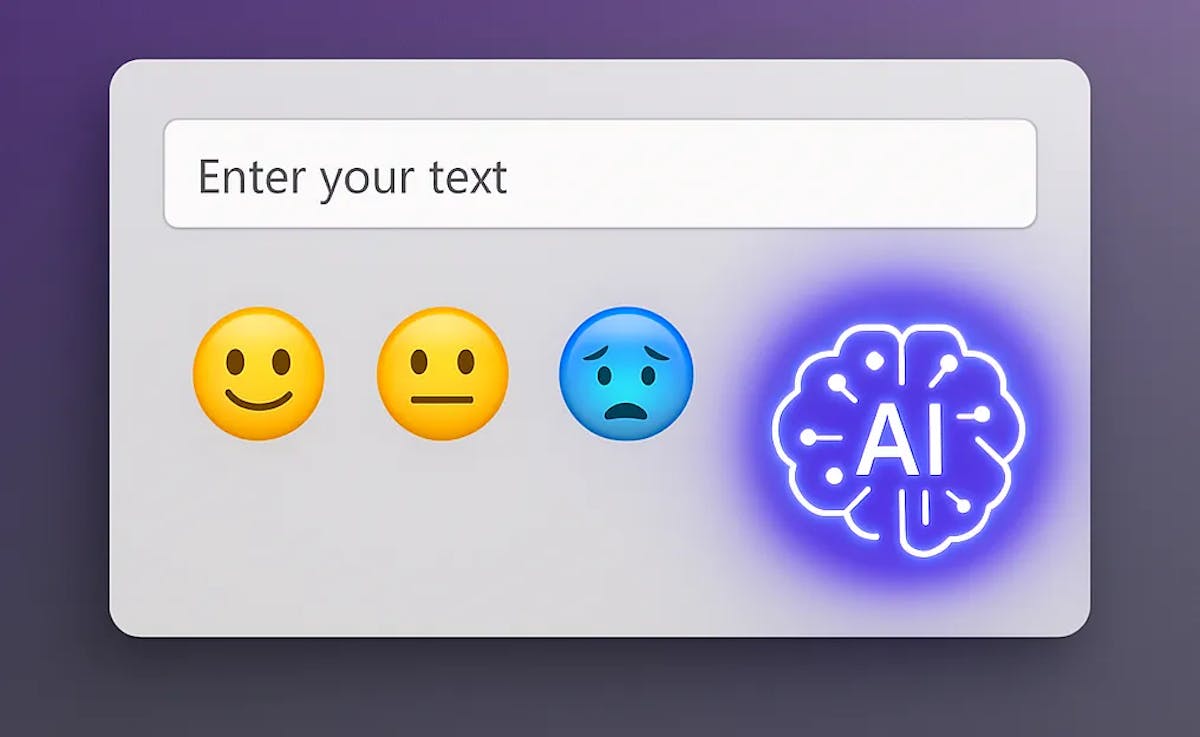
🤖 Introduction
In Part 1, we explored how to use the Agent Response Component with adaptive cards in a model-driven app. Now, let’s take things a step further by building a custom PCF (PowerApps Component Framework) component that analyzes sentiment from user input and displays a corresponding emoji as a recommendation.
This component will use AI Prompt actions in an Agent topic to interpret the sentiment of a text and return an emoji that visually represents the emotion. It’s a fun and intuitive way to bring AI into your apps!
🧰 Prerequisites
To follow along, you’ll need:
- Some knowledge in PCF development
- A Power Platform environment with access to Copilot Studio and AI capabilities
🛠️ Step-by-Step Guide
🔹 Step 1: Create an AI Prompt for emoji generation.
Create a new AI Prompt to be used in the Interactive Agent topic. Next I show you the example I've used:
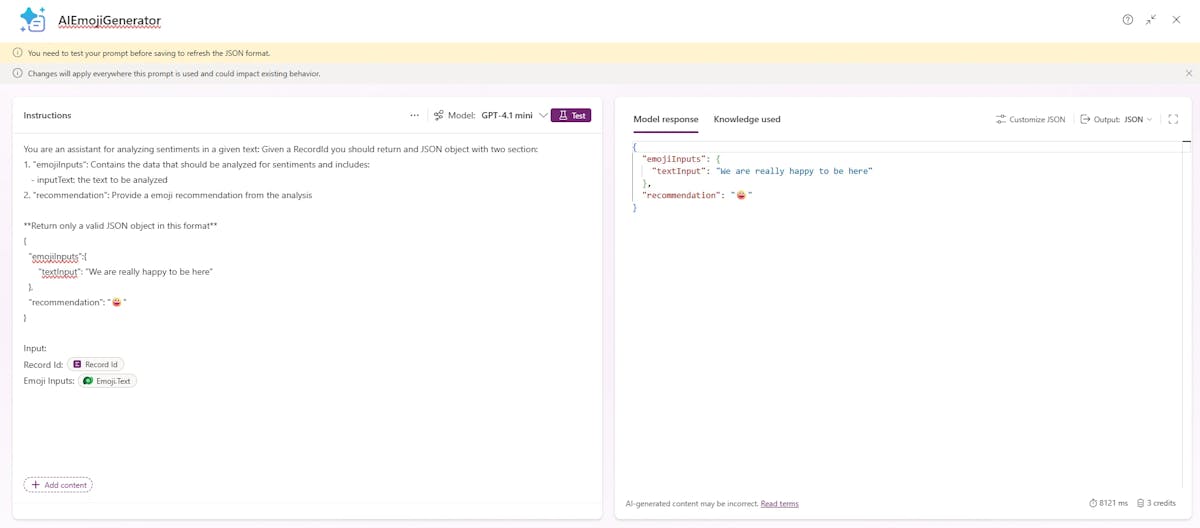 The AIPrompt is called "AIEmojiGenerator".
🔹 Step 2: Configure Your Interactive Agent in Copilot Studio.
Select your Interactive Agent in Copilot Studio and start by creating a new topic and configuring some nodes:
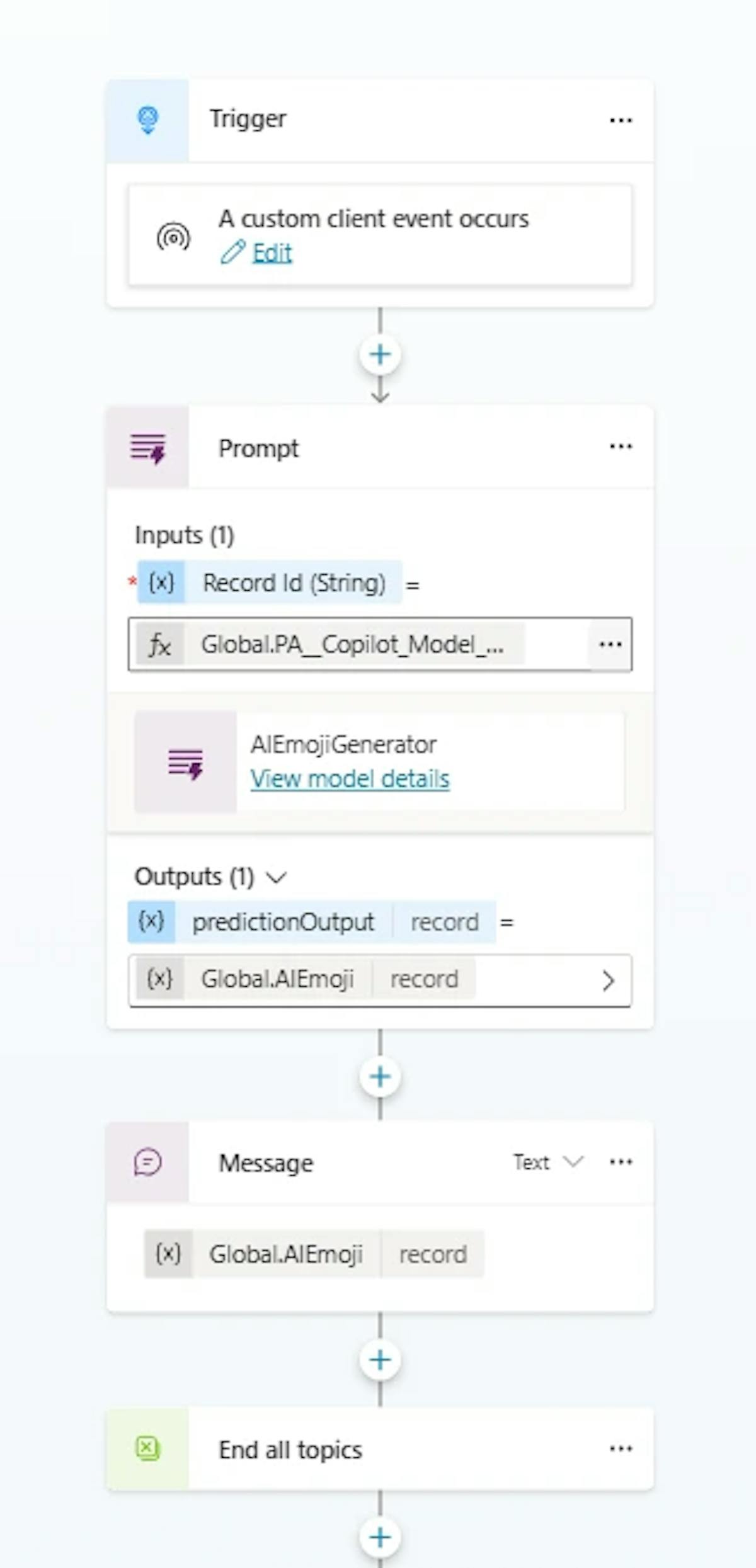
- Trigger: Select "A custom client event occurs" trigger and define a custom event name (Ex: Sergio.MDACopilot.PCF)
- Prompt node: "Add a tool" and select the AIPrompt we've previously defined ("AIEmojiGenerator").
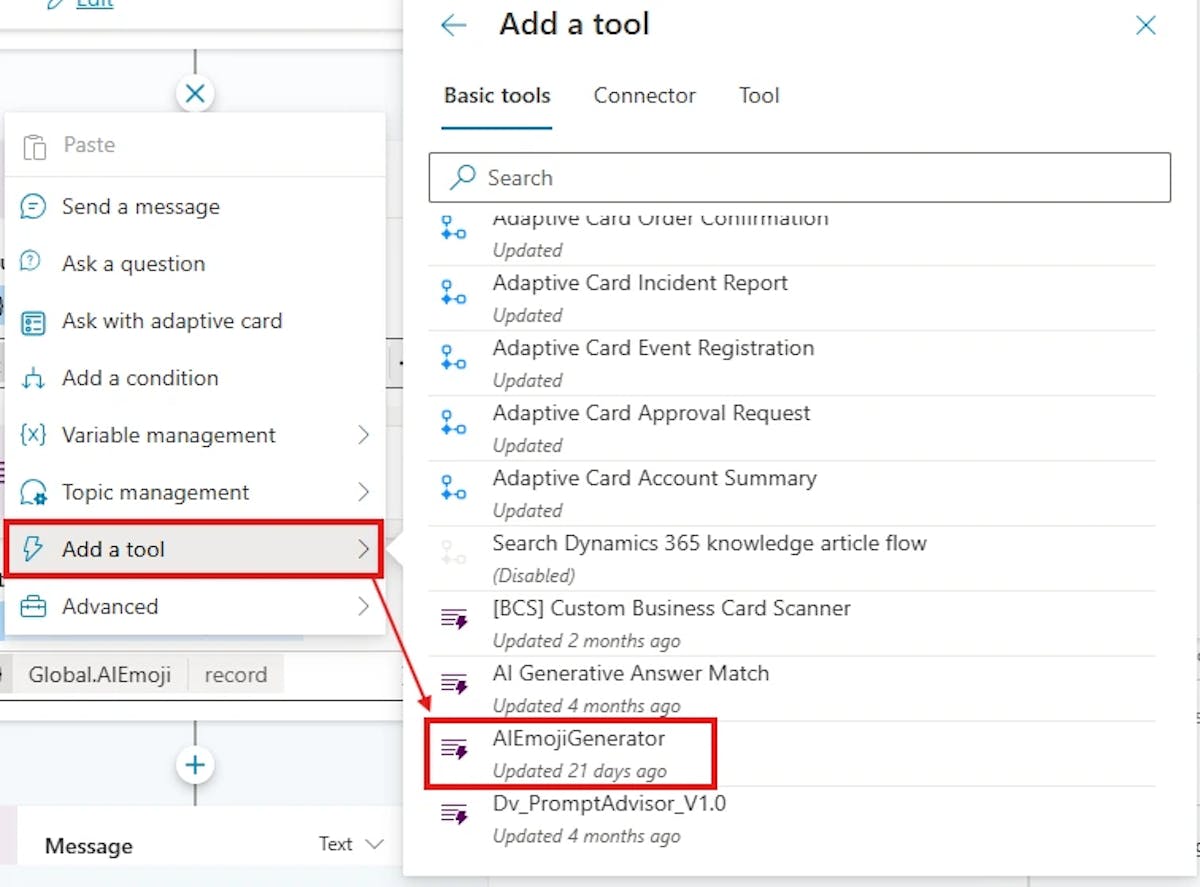 For Inputs, to get Record Id from Agent we should use the global variable "Global.PA__Copilot_Model_PageContext.pageContext.id.guid".
For Outputs we define a global variable ("Global.AIEmoji") to store the predicted result from AIPrompt.
- Message node (is optional): Add the previously created variable for AIPrompt output.
🔹 Step 3: Create the PCF Component. Use Power Platform CLI to create a PCF project. When PCF is ready to be used, we should push it to the selected environment.
(Note: I promise to create a new post on my blog to explain in detail the PCF development process. But for now, to avoid extending this post further, I will show some key details for integrating it with our agent using the new Agent APIs.)
Next, I show the function which call Agent API action "context.copilot.executeEvent" with parameters and returns the result from AIPrompt in Interactive Agent.
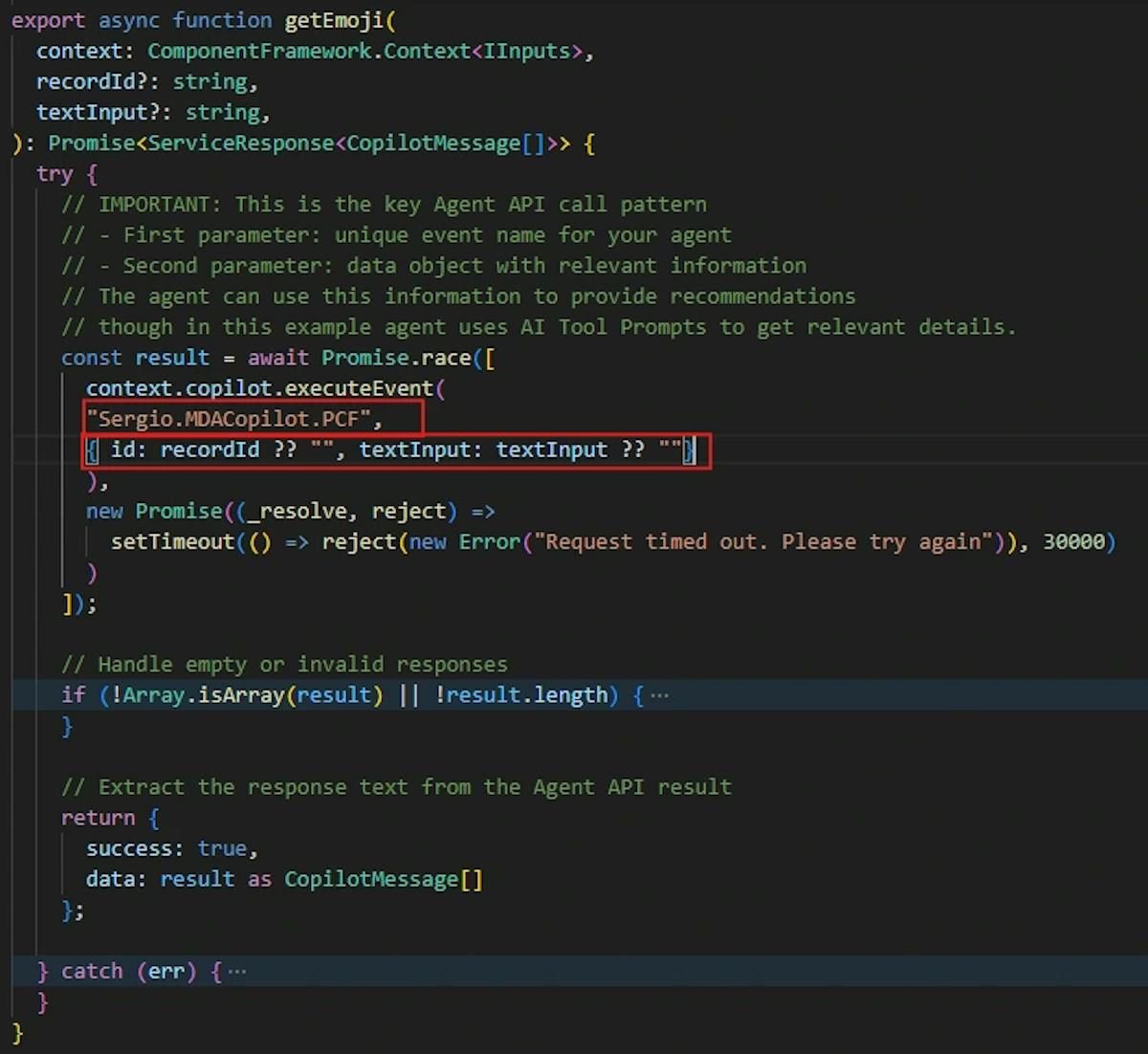 As you can see, event name should the same we've previously defined in Copilot Studio topic trigger and also, we pass input parameters (recordId and textInput).
🔹 Step 4: Enable the PCF Component in main form.
After pushing our PCF in the selected environment, the component will be available to be used in Dataverse table forms. You can use it to render the response from our agent.
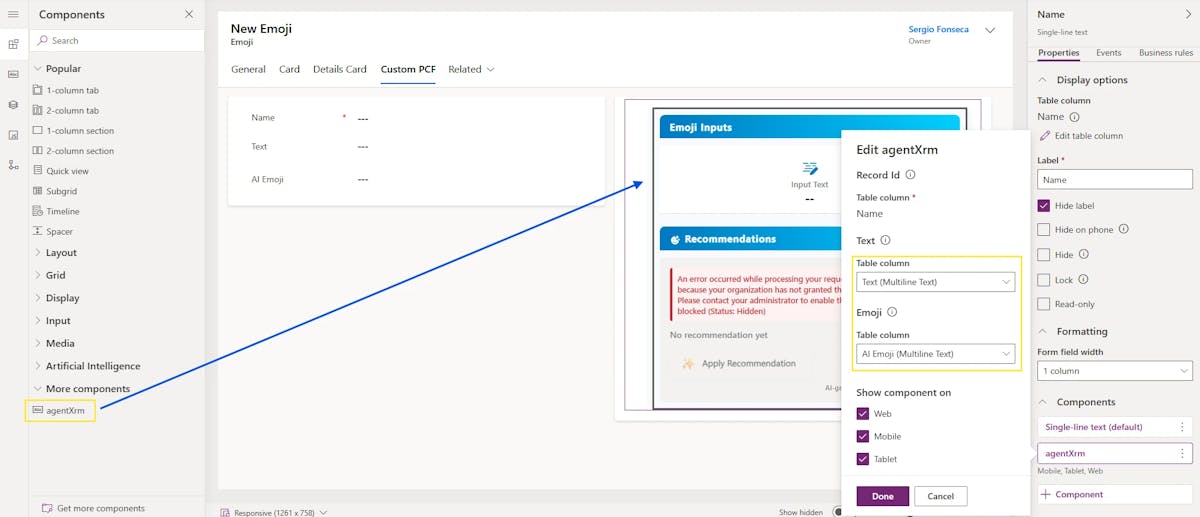 To use it in a model-driven app, you’ll need to:
- Add the component in the form.
- Link Table columns to the corresponding fields defined in the PCF as properties.
📸 Demo Preview

✅ Conclusion
This PCF component demonstrates how you can combine AIPrompt actions with custom UI elements to create engaging, intelligent experiences in Power Platform. Whether you're building feedback forms, chat interfaces, or just adding a touch of personality to your apps, sentiment-to-emoji mapping is a great way to start.